CMS frontend and basics
Access
The CMS frontend is opened in the browser, either directly via its address1 or via a tile on the NeuroomNet start page, if one has been set up. After signing in, the Project View appears:
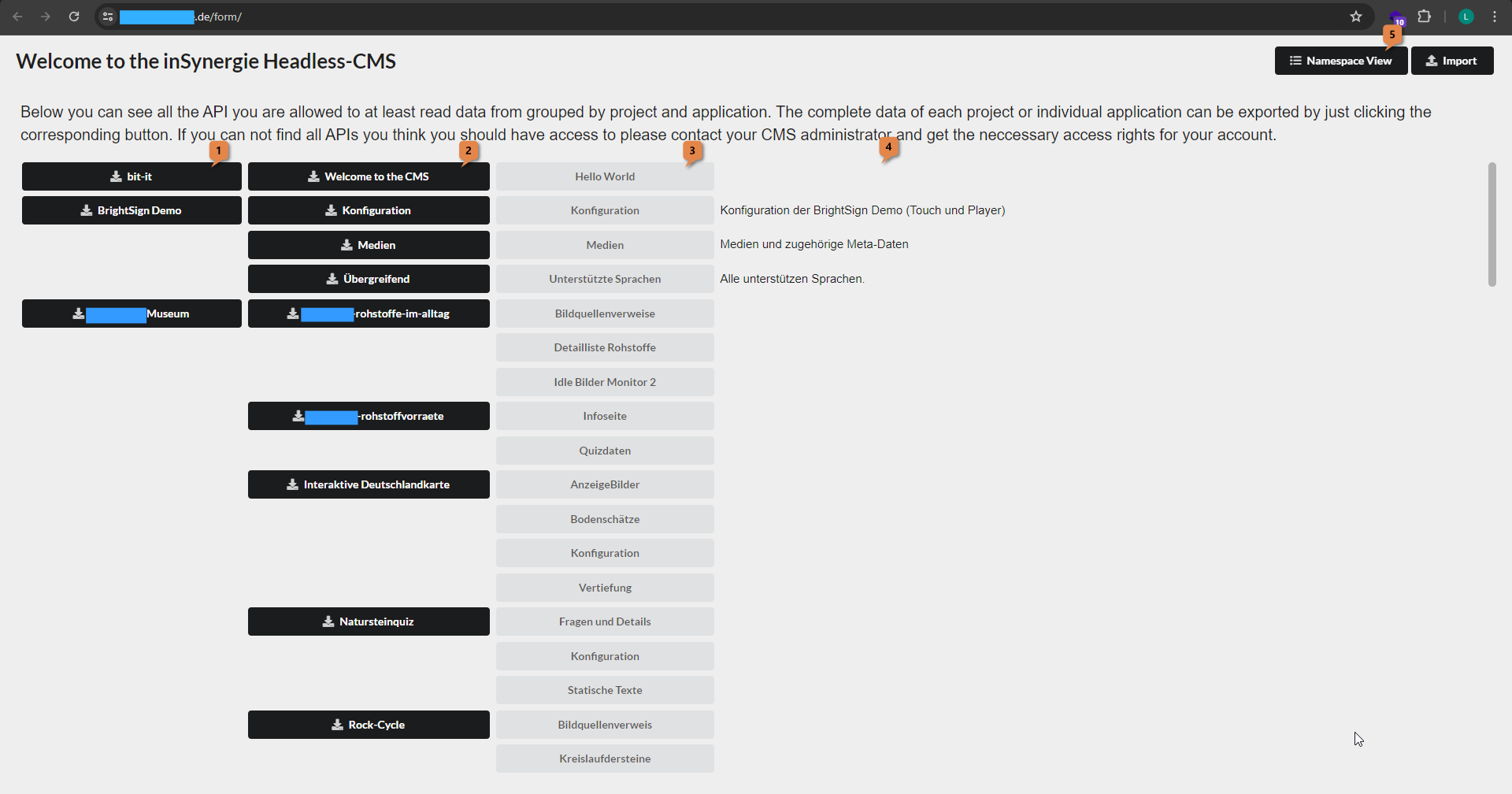
The screenshot was taken in an internal test environment. References to customers are hidden behind blue rectangles.
Structure of the CMS
The Project View arranges the data in three levels:
- Project 1, e.g. "BrightSign Demo"
- Application 2, e.g. "Medien"
- API 3, e.g. the API "Medien" of the same name, with an optional description 4
Project and application only serve as an overview. Technically, every API belongs to a namespace. The namespaces are shown in the Namespace View, which is opened with the button 9 at the top right2.
Projects
Projects separate the data of different undertakings or split a large one into parts. Most users only see the one project they work on.
Applications
An application groups the APIs that belong to one piece of software, one exhibit, or one topic.
Namespaces
A namespace usually stands for one of the following:
- a party or tenant, e.g. an exhibit manufacturer
- an application, e.g. an exhibit
- a topic
- the entire project
Namespaces are the basis for access and rights. When creating new namespaces, especially on a CMS used by several parties, keep the following in mind:
- Namespaces are unique.
- Allowed are parts of letters and digits starting with a letter, joined with
-and separated by.. Spaces,/and other special characters are not allowed (details: API configuration). - A meaningful prefix makes namespaces unique and simplifies granting rights, e.g. the developing company in reverse domain notation, or a unique project or customer name.
- All APIs of a namespace use the same languages. They are defined in an API
languagesin the namespace.
| Well chosen | Unfavorable |
|---|---|
de.insynergie.BrightsignDemo | BrightsignDemo |
Museum-fuer-Kunst123.exponat.impressionismus2 | Impressionismus2 |
de.insynergie.Museum-fuer-Kunst123.backend | backend |
APIs
The APIs hold the actual data. A namespace contains one or more APIs. Each API contains a list of records with the same structure. The structure of a record, i.e. which fields with which data types it has, is defined by the description (the schema) of the API.
In the CMS frontend, records can be viewed, created, changed, and deleted. The description of an API is created and changed via the programming interface.
Viewing and editing records
Clicking an API 1 opens its records:
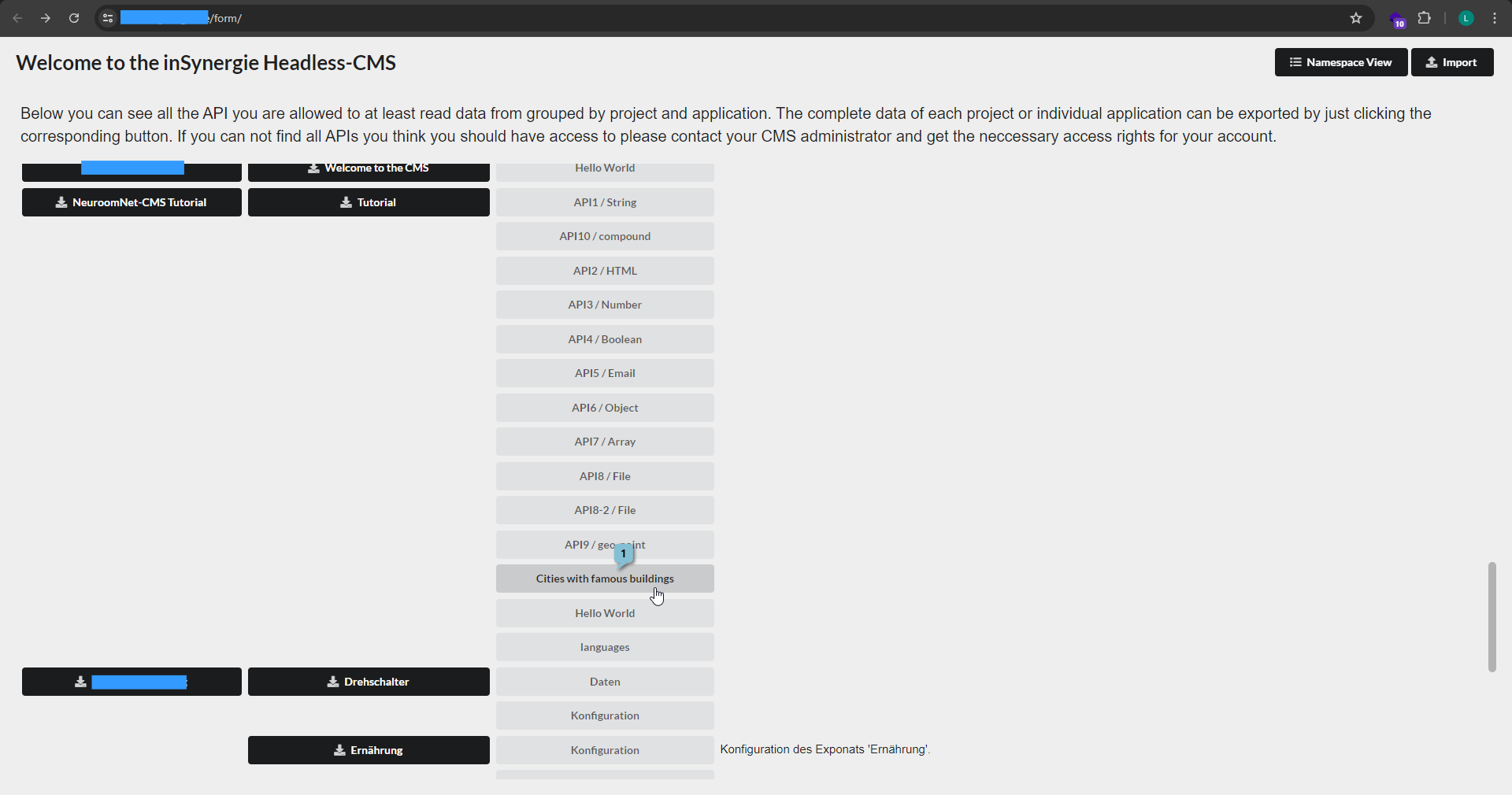
API view
The API view shows the records as a table, one row per record and one column per field:
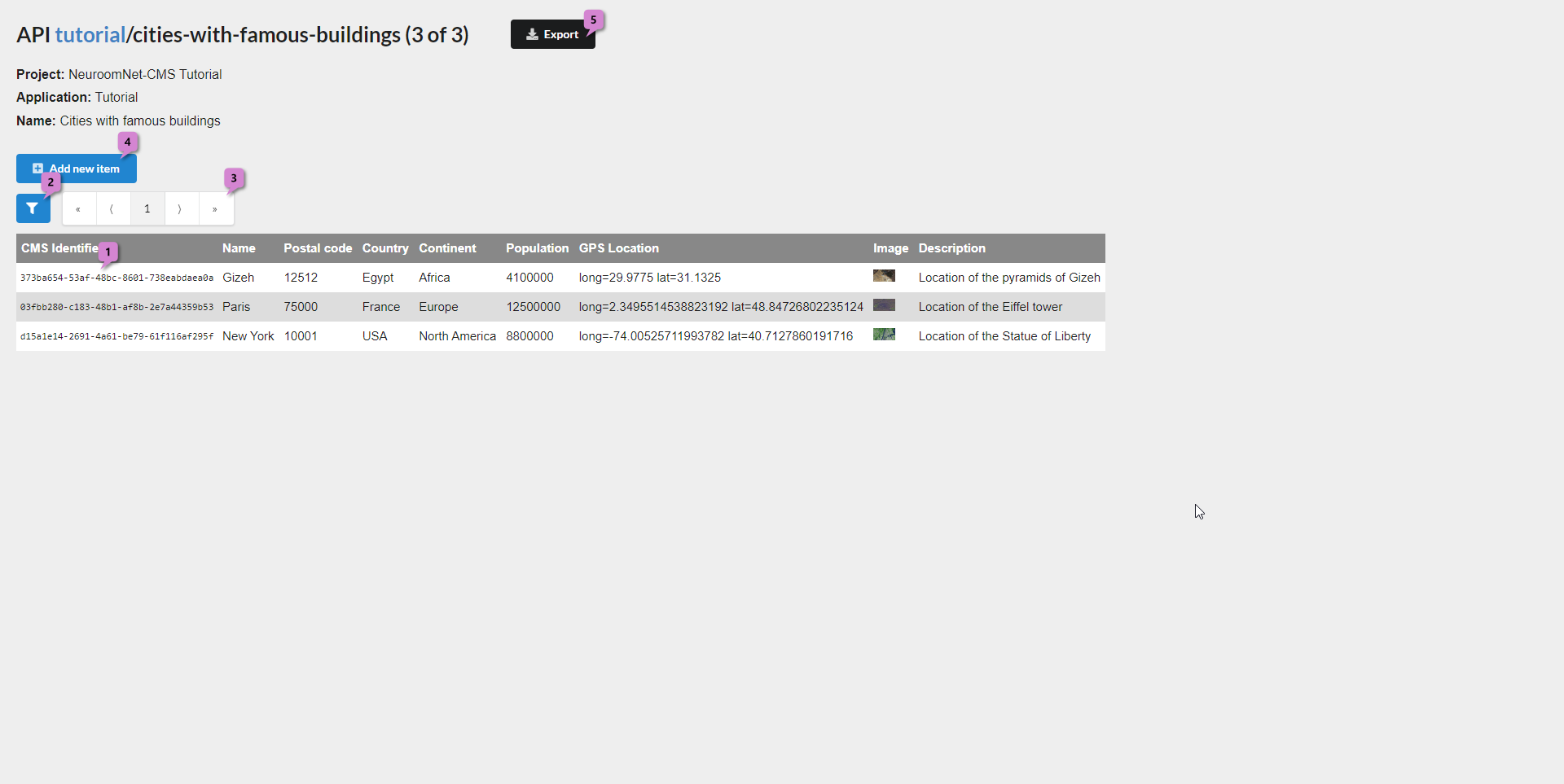
In the example, the table contains cities with world-famous buildings. The fields and their data types:
| Field | Data type | Content | Value in the first record 1 |
|---|---|---|---|
| CMS Identifier | – | technical identifier, often hidden | 373ba654-53af-48bc-8601-738eabdaea0a |
| Name | String | name of the city | Gizeh |
| Postal code | String | postal code | 12512 |
| Country | String | country | Egypt |
| Continent | String | continent | Africa |
| Population | Number | number of inhabitants | 4100000 |
| GPS Location | GEO coordinate | location of the city | 29.9775, 31.1325 |
| Image | Media file | image, here with an automatically generated thumbnail (192x108) | satellite image |
| Description | String, multilingual | description | Location of the pyramids of Gizeh (English version) |
The filter button 2 and the paging buttons 3 narrow down what is shown.
Creating a record
The "Add new item" button 4 opens an empty form for a new record. It is the same form as for editing.
Editing a record
Clicking a row opens the record in the form, here the row for Paris:
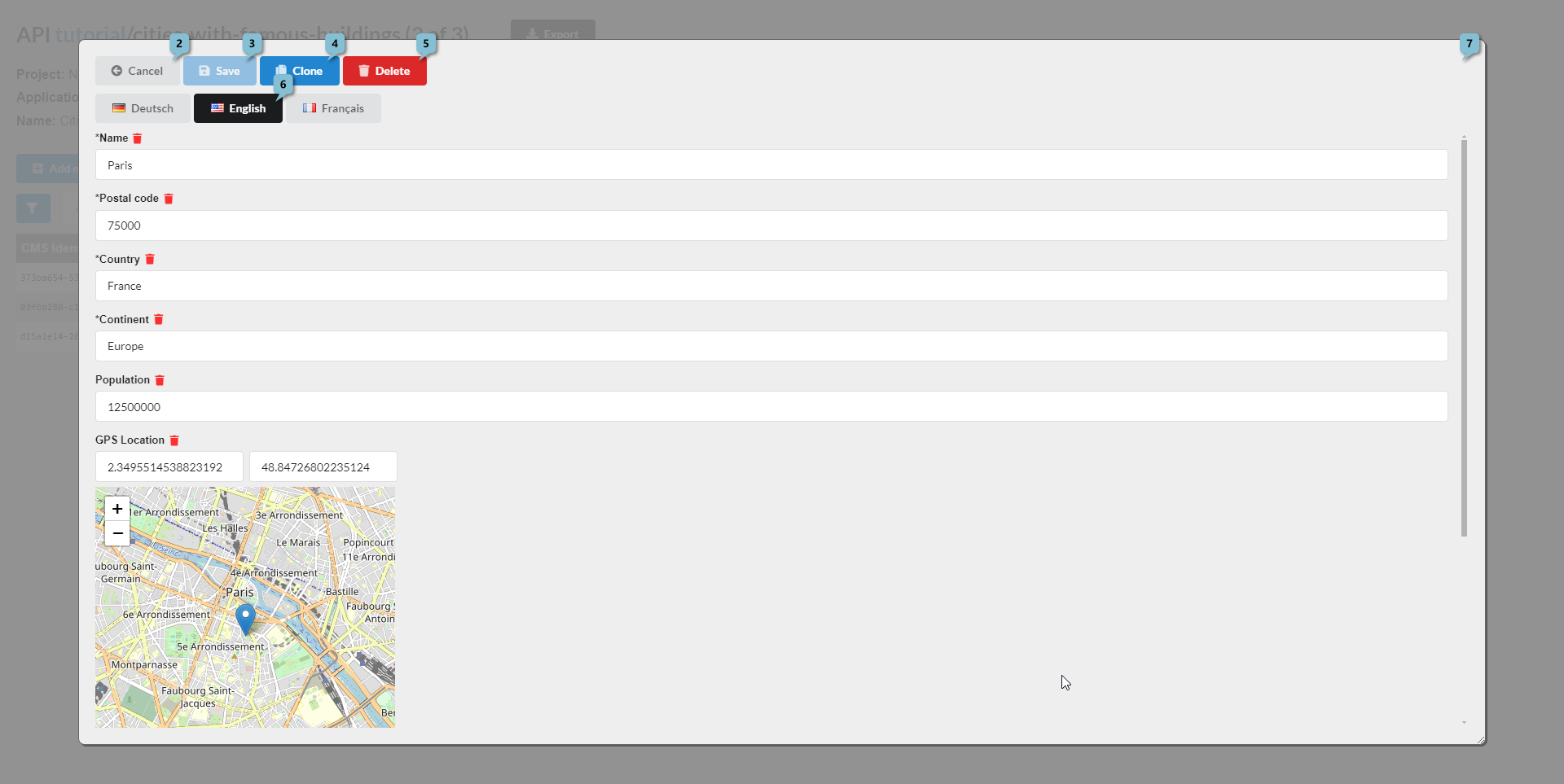
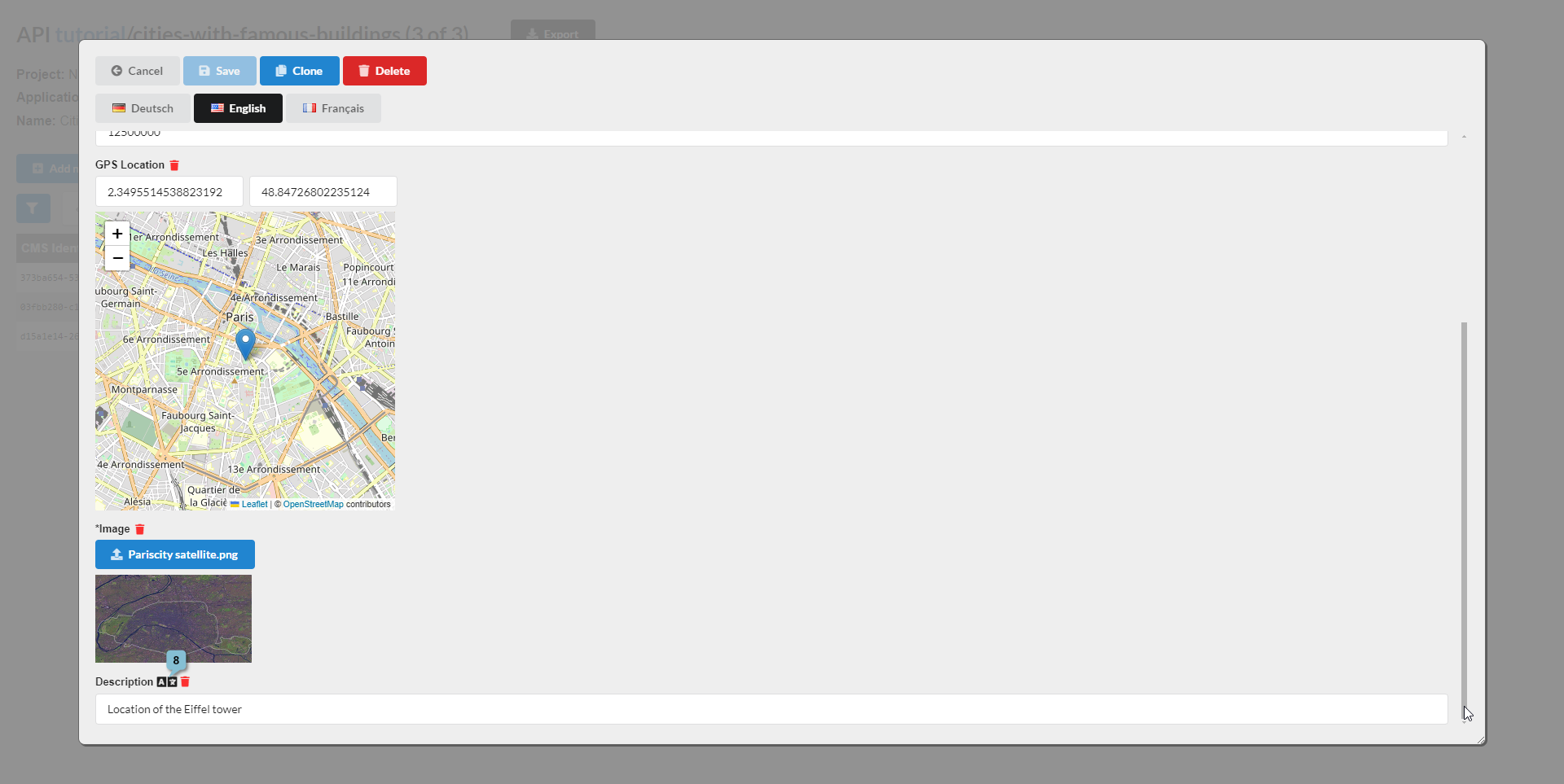
- Values can be changed directly. For file fields such as "Image", a button uploads a different file.
- The red trash can icons clear individual fields.
- "Save" 3 saves, "Cancel" 2 discards unsaved changes.
- "Clone" 4 creates a copy of the record.
- "Delete" 5 deletes the record.
- If the API is multilingual, the language buttons 6 select the language shown. Fields maintained per language carry an icon next to the trash can, in the example only "Description" 83.
- Further buttons at the top right 7 are defined by the description of the API, e.g. "Preview" to show the saved state in another application (see Buttons). None are set up in the example.
Example: adding a translation
The French description for Paris is to be added:
- In the form, select the language "French" 1.
- The multilingual field "Description" is still empty for French 2. Enter the text there, e.g. "Localisation de la Tour Eiffel".
- Save with "Save" 3.
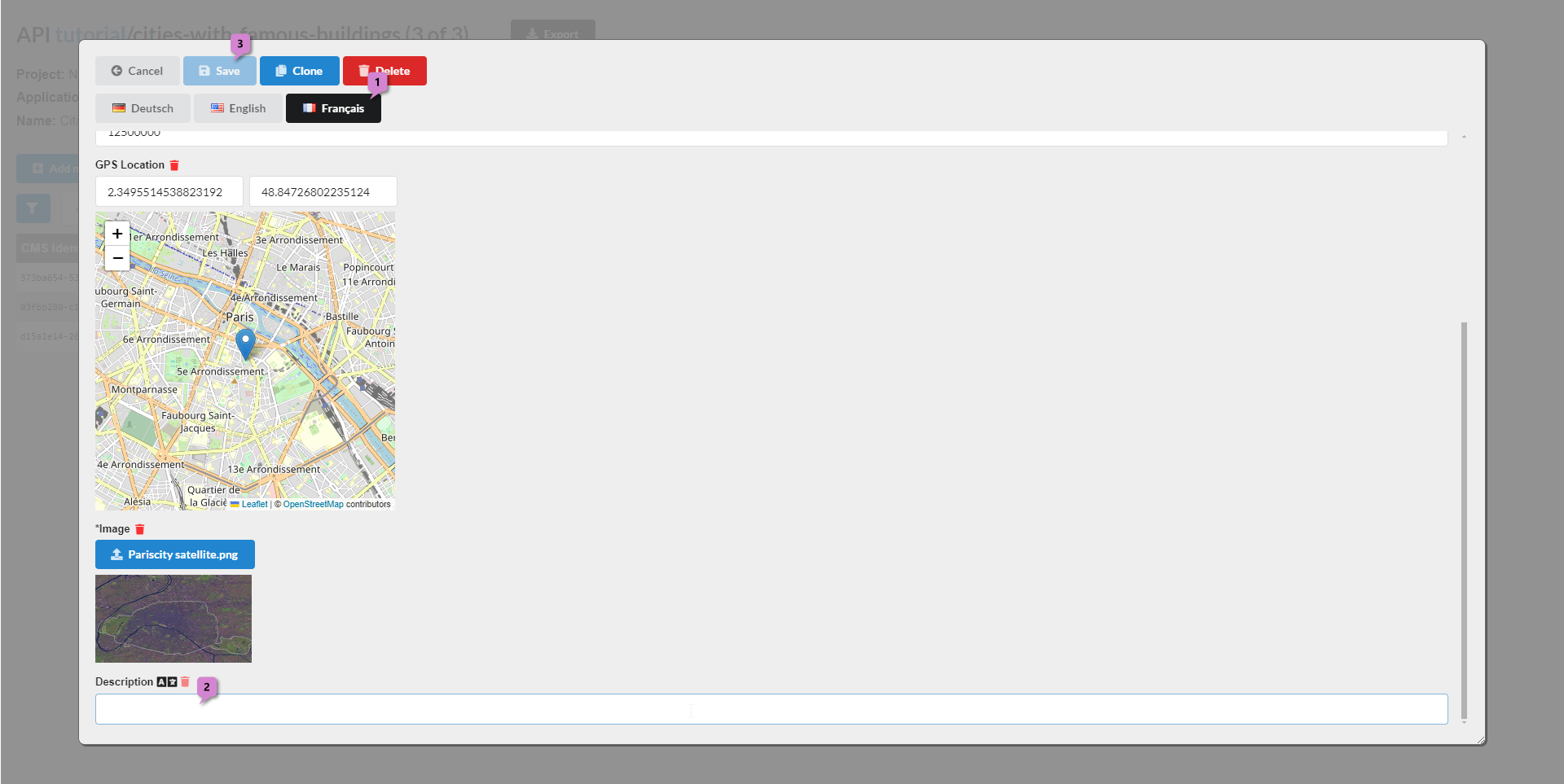
The text is now available in the CMS. When an application shows it depends on when that application reloads its content from the CMS.
Export and import
Entire projects, namespaces, or individual APIs can be exported as a ZIP archive including their media files and imported again, for example for backups or to transfer data from one CMS to another.
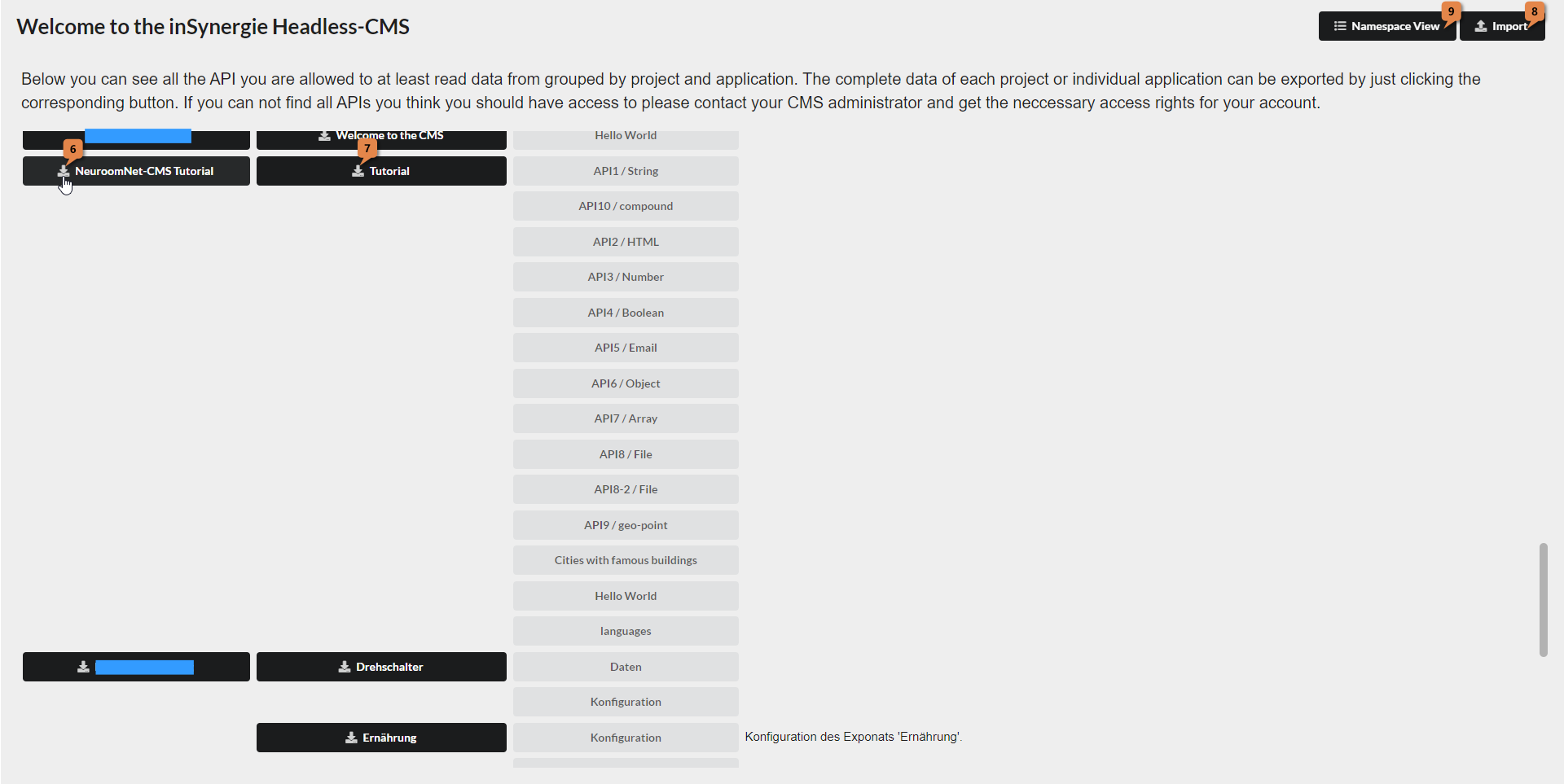
- Export: projects and namespaces via the download buttons 6 and 7 in the Project View, individual APIs via "Export" at the top right of the API view.
- Import: via the "Import" button 8 in the Project View.
An export is harmless; with large media files it just takes longer. An import, however, can overwrite existing data if namespaces and APIs with the same names already exist. It should therefore only be run with knowledge of the options, see Export and import.
Users and rights
The CMS can also be operated without NeuroomNet and therefore manages users and rights itself, not via the NeuroomNet rights management. User accounts are records of the API users in the namespace cms. Anyone with the necessary rights reaches it via the Namespace View (button 9) and can create, change, or delete accounts there like any other record4.
Which rights exist and how they combine is described in Rights and accounts.