Module MQTT Administration
The MQTT Module is available from NeuroomNet version 2026.2 onwards.
Introduction
MQTT (Message Queuing Telemetry Transport) is a lightweight messaging protocol originally designed for resource-constrained devices and unreliable networks. It is now widely used in building automation, IoT installations and industrial applications.
The basic principle: a central broker routes messages between participants. Senders (publishers) send messages to a topic (a path-like string, e.g. building/floor1/light/room3/status). Receivers (subscribers) subscribe to topics – either exactly or using wildcards (+ for exactly one level, # for all remaining levels). The broker ensures that every message reaches all matching subscribers.
NeuroomNet connects as a client to an existing MQTT broker and can thereby:
- Send messages to topics to control devices (actions)
- Subscribe to topics to react to incoming messages (events)
Special feature: server-wide broker connection
Unlike providers such as SNMP, PJLink or network components, where each component has its own direct connection to a device, MQTT uses a single server-wide connection to the broker. This connection is established when the MQTT service starts and is shared by all components.
The connection parameters (URL, credentials, TLS, etc.) are not configured in the admin UI but server-side in config.mqtt.json (section mqtt.broker:). Individual MQTT components in the admin UI only define which topics are subscribed to and which messages they publish – not how the connection is established.
Configuring the broker connection requires access to the server configuration and is the responsibility of the system administrator. Please contact NeuroomNet support if needed.
Module MQTT Administration
The MQTT Administration module shows a list of all configured MQTT components on the left. The "Add MQTT Component" button at the top left creates a new component. The search field can be used to filter the list by name, ID, topic or description.
Selecting a component from the list or creating a new one displays the editing form on the right. Changes are saved or discarded using the "Save" and "Cancel" buttons. A component can be removed using the red trash button.
Component fields
- Display Name: Display name of the component in NeuroomNet (any free text, should be unique)
- Description: Optional free-text description of the component
Copying a component
The "Copy" button duplicates the open, saved component. The copy is named <Name> (copy), and its description additionally starts with the note Copied from <Name>. All events and actions are taken over.
The copy is initially only a draft. It is created with "Save" and discarded with "Cancel". The button is only available for an existing component and for users who have the right to add and modify components.

Find and Replace
The "Find and Replace" area at the top right replaces a text in the open component with another text. Enter the text to search for in the "Find" field and the new text in the "Replace with" field. Clicking "Replace" performs the replacement.

All occurrences in the Display Name as well as in the topic and payload of all events and actions are replaced. The replacement is case-sensitive. Names of events and actions, the description, QoS and retain remain unchanged.
The replacement only affects the form at first and is saved with "Save". After the replacement, NeuroomNet shows how many places were changed.
Example: With Find = foyer and Replace with = hall, the topic home/lights/foyer/status becomes home/lights/hall/status. The display name Beleuchtung Foyer remains unchanged, because the capital "F" is not found.
MQTT Events (Subscribe Events)
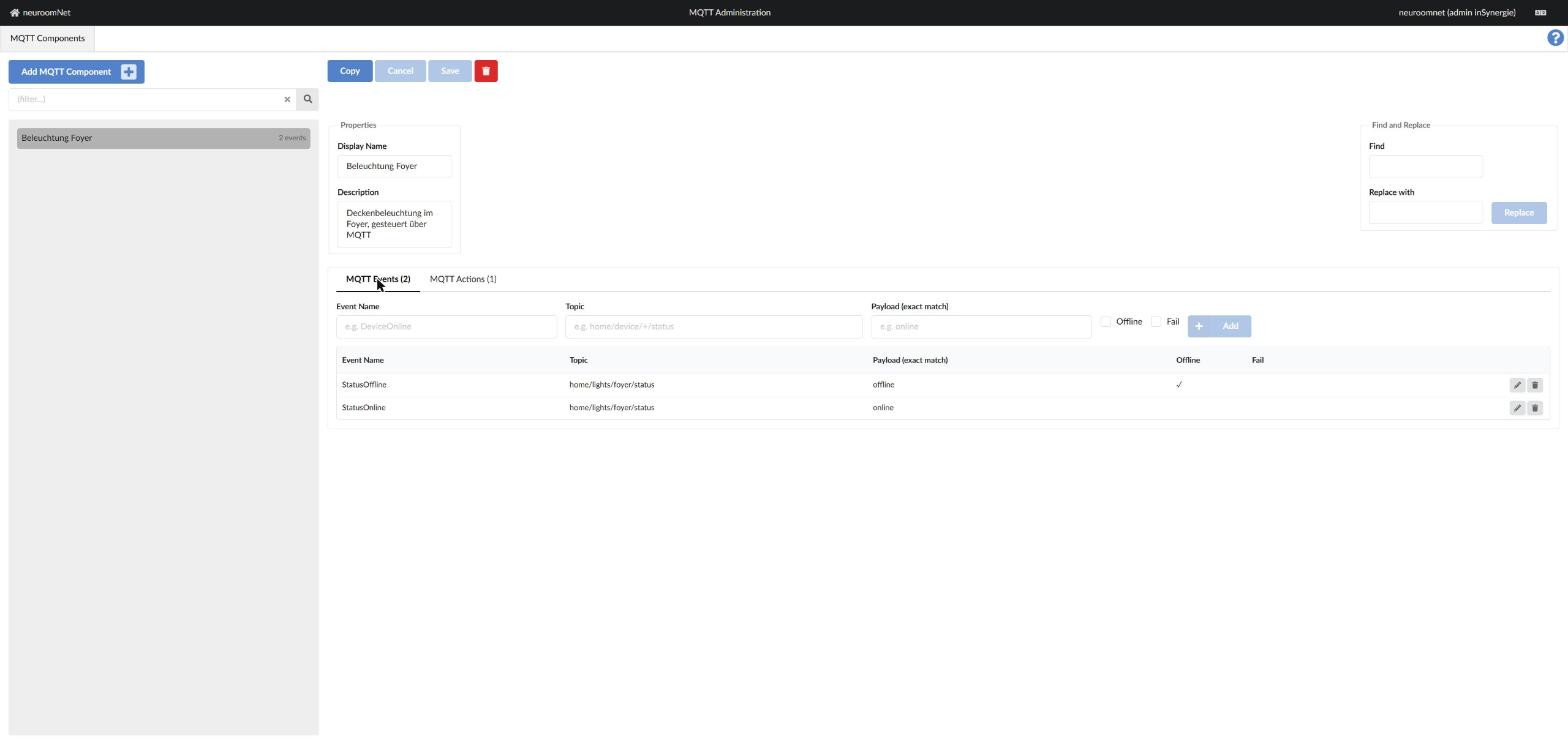
The "MQTT Events" tab defines which incoming MQTT messages this component reacts to. Each event corresponds to a NeuroomNet event that can be used as a trigger in script blocks.
Events are added on the tab using the input form at the top. The table below lists the existing events. The figure shows the component "Beleuchtung Foyer" with two events on the same topic: StatusOnline for the payload online and StatusOffline for the payload offline, where the Offline flag is set.

The fields in detail:
-
Event Name: Internal name of the event in NeuroomNet (e.g.
DeviceOnline). This name appears later in the script editor as a trigger. -
Topic: The MQTT topic to subscribe to (e.g.
home/device/+/status). Wildcards are supported:+replaces exactly one topic level (e.g.home/device/+/statusmatcheshome/device/abc/statusandhome/device/xyz/status)#replaces all remaining levels and must appear at the end (e.g.home/device/#matches all topics belowhome/device/)
Wildcards can be given a custom name by appending a colon and the desired name directly:
+:nameor#:name. This name then appears in the script editor as the identifier for the corresponding parameter instead of the automatically generated name (Level 1,Level 2… orSubtopics).Topic Parameter name in the script editor home/device/+/statusLevel 3(automatic, position 3)home/device/+:room/statusroomhome/device/#Subtopics(automatic)home/device/#:pathpathThe label has no effect on the MQTT subscription — from the broker's perspective,
+:roomis identical to+. -
Payload (exact match): Optional filter on the message content. If this field is filled in, the event only fires when the received payload exactly matches this value. If left empty, any message on this topic fires the event – and the received payload is passed as a parameter to the script block.
-
Offline: When checked, the component is set to Offline in NeuroomNet as soon as this event arrives (e.g. for an LWT message or a status message indicating that the device is unreachable).
-
Fail: When checked, the component status is set to Error when this event arrives.
Existing events can be edited or deleted using the pencil and trash buttons in the table.
MQTT Actions (Publish Commands)
The "MQTT Actions" tab defines which messages this component can publish. Each action corresponds to a NeuroomNet action that can be executed in script blocks.
Actions are added on the tab using the input form at the top. The table below lists the existing actions. The figure shows the action TurnOn, which publishes the payload ON to home/lights/foyer/set.

The fields in detail:
-
Command Name: Internal name of the action in NeuroomNet (e.g.
TurnOn). This name appears later in the script editor as an executable action. -
Topic: The MQTT topic to which the message is published (e.g.
home/lights/1/set). Wildcards are supported and turn the action into a dynamic publish:- Each wildcard position (
+or#) becomes a required parameter of the action. - When the action is called from a script block, the caller must supply a concrete value for each wildcard position; this value is then substituted into the topic.
- Named wildcards (
+:name,#:name) work the same as for events and control the parameter name in the script editor.
Example: Topic
home/+:room/light/setcreates a required parameterroom. The action is then called e.g. withroom = "living-room"and publishes tohome/living-room/light/set. - Each wildcard position (
-
Default Payload: Optional fixed message content (e.g.
ON). When this field is filled, the action has no payload parameter — the configured value is always used. If left empty, the action has an optional payload parameter that can be supplied when the action is called from a script block. -
Quality of Service (QoS): MQTT delivery guarantee, one of three values:
0– "At most once": The message is sent once without acknowledgement (fastest option, no retry)1– "At least once": The broker confirms receipt; duplicates are possible2– "Exactly once": A four-way handshake ensures exactly one delivery (slowest, most reliable option)
-
Retain: When checked, the broker stores the last message on this topic and sends it immediately to every new subscriber. Useful for status messages that should still be known after a new connection is established.
Existing actions can be edited or deleted using the pencil and trash buttons in the table.
Status of MQTT components
The status of an MQTT component depends on the server-wide broker connection:
- Online (green): The connection to the MQTT broker is active.
- Offline (red): The connection to the broker is interrupted. This affects all MQTT components simultaneously, as they share the connection.
In addition, the status of an individual component can be influenced by incoming events (see the Offline and Fail fields in the MQTT Events section).
Unlike TCP/IP devices, a green status does not indicate whether an individual device is reachable – only whether NeuroomNet is connected to the broker.
Broker configuration (administrator)
The connection parameters for the MQTT broker are configured server-side in config.mqtt.json under mqtt.broker. The most important fields:
| Field | Description |
|---|---|
url | Broker URL, e.g. mqtt://192.168.1.10:1883 or mqtts://broker.example.com:8883 |
clientId | Optional client ID (assigned automatically if omitted) |
username / password | Credentials for a secured broker |
keepalive | Keepalive interval in seconds (default: 60) |
tls.caFile | Path to a root CA certificate (for self-signed broker certificates) |
tls.rejectUnauthorized | false disables certificate validation (for development/testing only) |
onConnect | Message published when the connection to the broker is established (birth message) |
lastWill | Last Will and Testament – published by the broker when NeuroomNet disconnects unexpectedly |
For questions about server configuration, please contact NeuroomNet support.
Tips
Naming MQTT components meaningfully
Since all MQTT components share the same broker connection, it is advisable to name components after the device or function they represent – e.g. Foyer Lighting, Air Conditioning Office 2.12 or Presentation System Hall A. This keeps the assignment in script blocks unambiguous.
Using payload filters selectively
If a device reports various states on the same topic (e.g. online, offline, error), multiple events with different payload filters can be created for the same topic. Each state is then treated as a separate NeuroomNet event.
Example: Topic building/device/1/status with three events:
- Payload
online→ EventDeviceOnline - Payload
offline→ EventDeviceOffline(with Offline flag active) - Payload empty → Event
DeviceStatusReceived(receives the payload as a parameter)
Named wildcards for descriptive parameter names
When a topic contains multiple wildcard positions or the automatic names (Level 1, Level 2, Subtopics) are impractical in the script editor, named wildcards are worth using.
Event example: Topic building/+:floor/room/+:room/temperature provides the parameters floor and room in the script editor instead of Level 2 and Level 4.
Action example: Topic devices/+:deviceId/command creates a required parameter deviceId that is filled with the concrete device ID when the action is called.
The syntax has no effect on the actual MQTT protocol.
Custom component types and aliases
If multiple MQTT components are of the same type (e.g. several identical luminaires), custom component types with action aliases can be created. This allows descriptive names such as "Switch on light" to be used instead of the general action name.
See Module Setup / Component Types Tab for an explanation of this.