Module Message Hub
The Message Hub module is available from NeuroomNet version 2026.3 onwards.
The Message Hub module connects devices and systems that exchange JSON messages over WebSocket. It is a generic provider: instead of needing a separate service for each device, you describe the message format in NeuroomNet itself.
Introduction
Many devices and systems send and receive messages as JSON objects over a WebSocket connection. NeuroomNet can work with them in two ways:
- Events: An incoming message that matches a defined pattern triggers a NeuroomNet event. The event can be used as a trigger in script blocks, and the values from the message are available as parameters.
- Commands: A NeuroomNet command creates a JSON message and sends it over the connection. The values passed in the script block are inserted into the object.
Unlike MQTT, the Message Hub does not describe individual topics but the entire message format. You store this description in a shared protocol that several components can use.
Shared protocol
A protocol contains the events and commands that apply to a particular message format. All components that use the same protocol share its events and commands. A change to the protocol therefore applies to all of these components.
The protocol is selected in the component form via the field "Identifier". "New" creates a new protocol. Events and commands of a protocol are edited in the form of a component that uses this protocol.
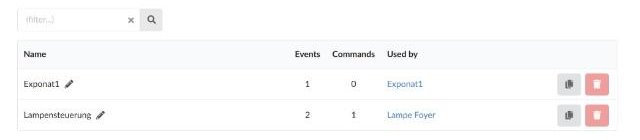
The "Protocols" tab lists all shared protocols. It shows how many events and commands a protocol has and which components use it.
- Rename: Use the pencil icon next to the name.
- Copy: The "Copy" button creates a copy of the protocol. The copy keeps the identifiers of the events and commands. Scripts therefore keep working when a component is switched to the copy.
- Delete: A protocol can only be deleted when no component uses it anymore. Switch the components to another protocol first.
Answering application ping
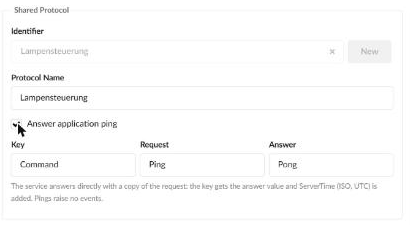
The option "Answer application ping" in the "Shared Protocol" area lets the service answer application pings itself. The setting belongs to the shared protocol and therefore applies to all components that use this protocol. Currently, NeuroomNet only supports the JSON format.
The option has three fields, which are pre-filled:
- Key: Path of the key that identifies the request. Dots separate nested levels, for example
header.command. Default:Command. - Request: The value the key must have in a request. Default:
Ping. - Answer: The value the service sets at the key in the answer. Default:
Pong.
If an incoming message matches Key and Request (exact comparison), the service answers only the sender. The answer is a copy of the message, the key contains the answer value, and a field ServerTime with the server time in ISO format in UTC is added:
Request:  {"Command":"Ping","id":17}
Answer:   {"Command":"Pong","id":17,"ServerTime":"2026-10-17T09:15:00.000Z"}
A ping raises neither an event nor a variable and is not logged. All other messages are processed as usual.
Creating a component
"New Component" creates a new component. In the "Properties" area, enter the Display Name and the Description.
In the "Connection Settings" area, define the connection:
- Transport: Either "WebSocket Client" or "WebSocket Server".
- WebSocket Client: NeuroomNet connects to the device. The URL has the form
wss://host:port/path. "Ignore certificate errors" ignores errors with the certificate. - WebSocket Server: The device connects to NeuroomNet. The Path distinguishes the components, because all server components share one port. The form shows the address the clients connect to, both encrypted and unencrypted.
- Subprotocol (optional): A WebSocket subprotocol, if the device requires one.
- Watch connection (ping/pong): Monitors the connection with WebSocket ping and pong messages at transport level. The option is pre-selected when a component is created. If no pong arrives before the next ping, the connection is disconnected and re-established. The interval is configured on the server (see Administration). This is independent of the application pings above.
- Report every message (MessageReceived): Raises the generic event
MessageReceivedfor every incoming message. This creates considerable load and should only be enabled when needed.
In server mode, the address depends on the prefix that the administrator configures on the server. The display in the form already takes this into account.
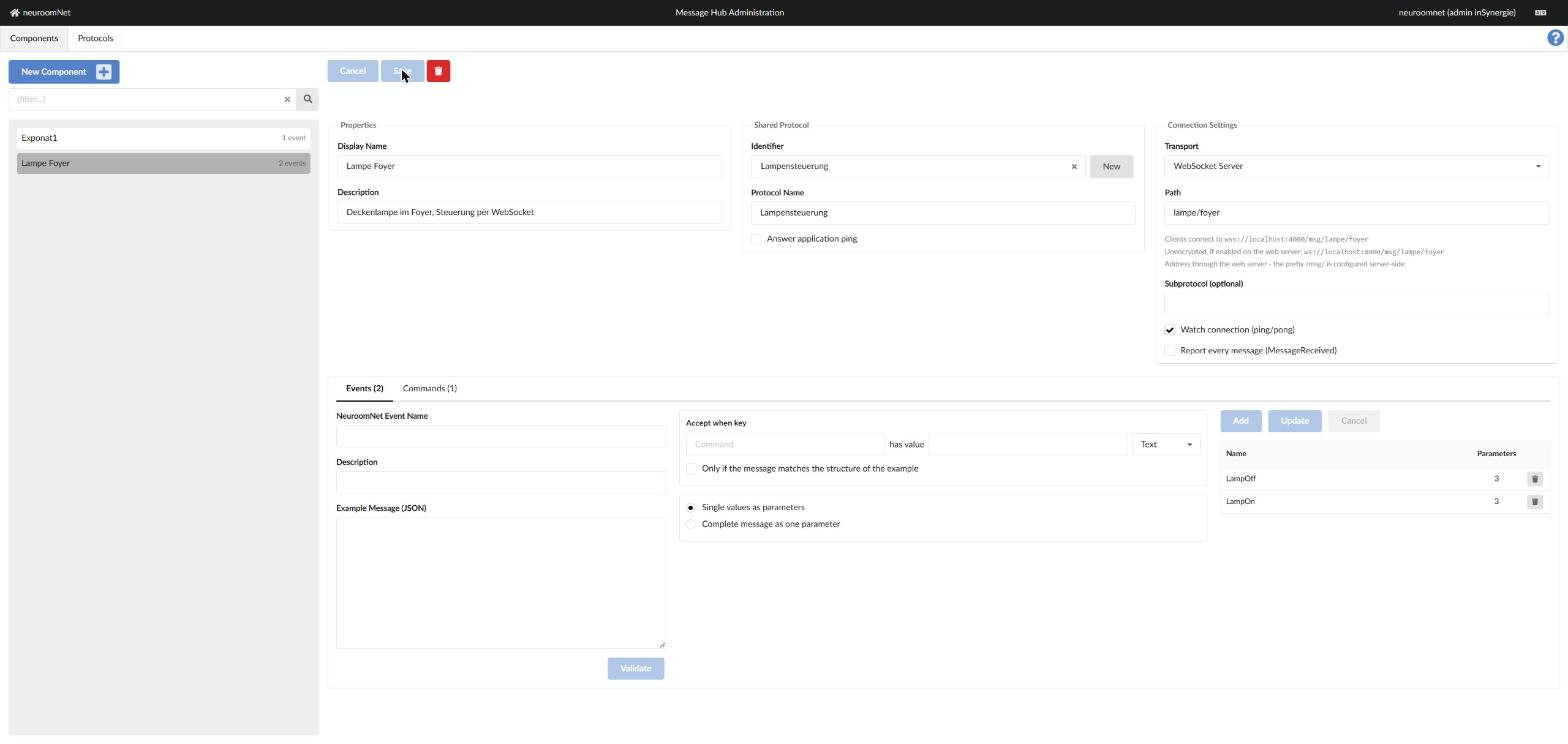
The overview below shows a saved component with its protocol, connection settings and events.
Events (tab "Events")
The "Events" tab defines which incoming messages trigger a NeuroomNet event. The input form on the left creates an event. The table on the right lists the existing events with the number of their parameters.
The fields in detail:
- NeuroomNet Event Name: Name of the event in NeuroomNet. It appears later in the script editor as a trigger.
- Description: Optional description.
- Example Message (JSON): An example of a message that should trigger this event. "Validate" checks the example. Afterwards the fields are listed as parameters.
- Accept when key: The condition. The event is only triggered when the key has the given value. The value can be Text, Number, Boolean or Null.
- Only if the message matches the structure of the example: The event only applies if the message has the same structure as the example (top level).
- Single values as parameters / Complete message as one parameter: Either each field is passed as its own parameter, or the entire message is passed as a single object.
- In use: Determines which fields are taken over as parameters. For each field, select the parameter type, for example
Integerfor a number.
"Add" adds the event. To change an existing event, select it in the table and click "Update". "Cancel" discards the input.
It is common to have several events that check the same field with different values. The overview above shows the events LampOn and LampOff for the field power.
Example: validating an example message
The example message determines the parameters. In the following example, the device sends a status message with the fields type, device, power and level. After validation, the fields are suggested as parameters. The field type is the same for all messages here, so it is removed from the parameters.
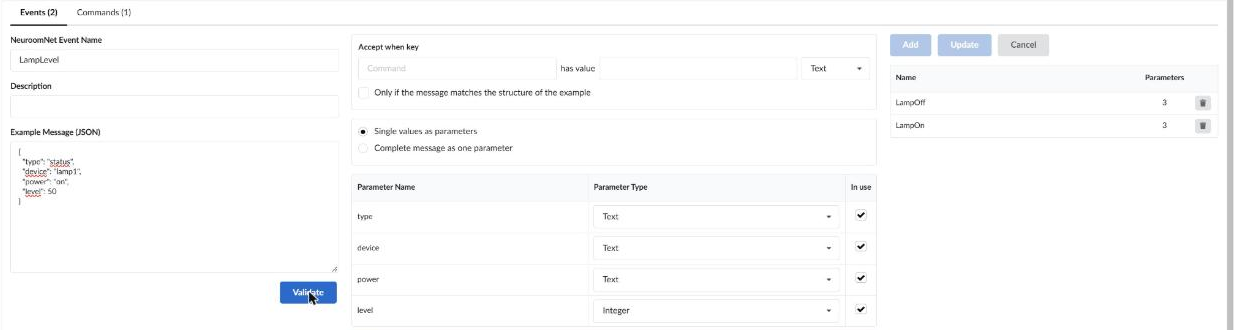
The hint below the form shows what is still missing, for example the key for the condition.
Commands (tab "Commands")
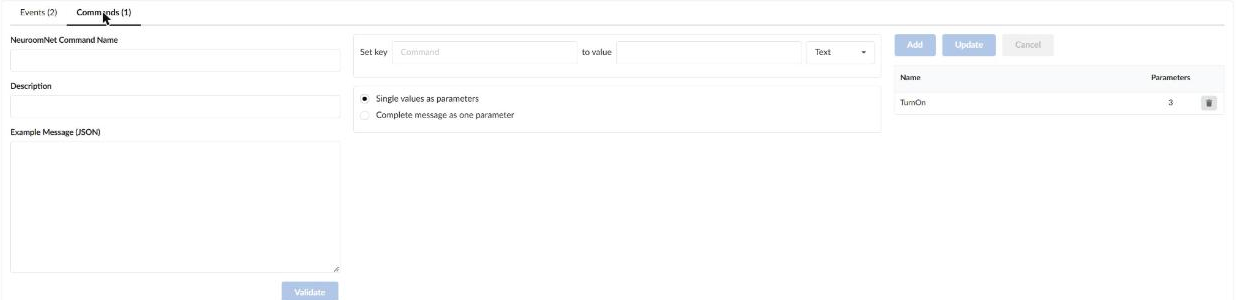
The "Commands" tab defines which messages NeuroomNet can send. Operation corresponds to the events, with the following difference:
- NeuroomNet Command Name: Name of the command in the script editor.
- Example Message (JSON): The message that is sent. The fields are offered as parameters, which are set when the command is called in a script block.
- Set key ... to value: A fixed value that is always written into the message. The field then disappears from the parameters. This option can be used, for example, to set a type that is the same for every command.
The figure shows the command TurnOn. The key type is fixed to command. The parameters device, power and level can be set when the command is called in a script block.
Variables
A component provides the variables LastMessage (content of the last message) and LastMessage.Time (time of reception).
Example: component Lampe Foyer
The example shows a component that connects to a lamp as a WebSocket server:
- Create the protocol Lampensteuerung (via "New" in the field Identifier).
- Create the events
LampOn(conditionpower=on) andLampOff(conditionpower=off), each with an example message. - Create the command
TurnOnwith the type fixed tocommand. - Save the component as WebSocket Server with the path
lampe/foyer. The device then connects to the displayed address.
The result is shown in the overview above.
Tips
One protocol per device type
Devices of the same type use the same message format. A shared protocol for these devices avoids duplicate maintenance. Each component only needs its own display name and path.
Check events against the example
Before saving, check the parameter list after validation. Fields that are not taken over as parameters appear greyed out in the form and can be activated again with the checkbox.
Administration
The service is configured on the server in the section webSocket:
serverPort: Port of the WebSocket server.serverPathPrefix: Prefix of the paths, default/msg/.keepAliveInterval: Interval between ping messages in milliseconds, default25000. In client mode,0disables the monitoring.reconnectInterval: Wait time before reconnecting in milliseconds, default5000.caFile: Additional root certificates for client mode.
For questions about the server configuration, please contact the NeuroomNet support.