Script Blocks (media control)
Media Control - Logic Editor
Every building is different and every media technology is used individually. For this purpose, the Script Blocks module (comparable to a media control from other manufacturers) offers all the options for very easily defining processes (actions) that should be carried out on specific events. Events can e.g. E.g. a time, pressing a button on the tablet or exceeding a threshold value. For example, an announcement can be started very easily every day at a certain time, or a lighting mood can be called up at the click of a button and/or media sources can be switched. This opens up countless possibilities without having to learn a programming language or familiarize yourself with the protocols of the end devices.
Scripts, Blocks, Events and Actions
If you can handle it, you can actually control anything you want.
But first in detail:
What are scripts?
Scripts are just a division. For example, if it makes sense to me, I can control all devices of a type in a separate script, or everything that affects a room, or a special functionality, or, or, or.
You can imagine scripts as individual pages on which you can write down any seemingly related things. The order of scripts is not critical, they are all treated equally. Scripts can be 'active', i.e. everything that is in the script is also done. Or they are 'Inactive', then all blocks, events and actions in the script are not executed.
What are blocks?
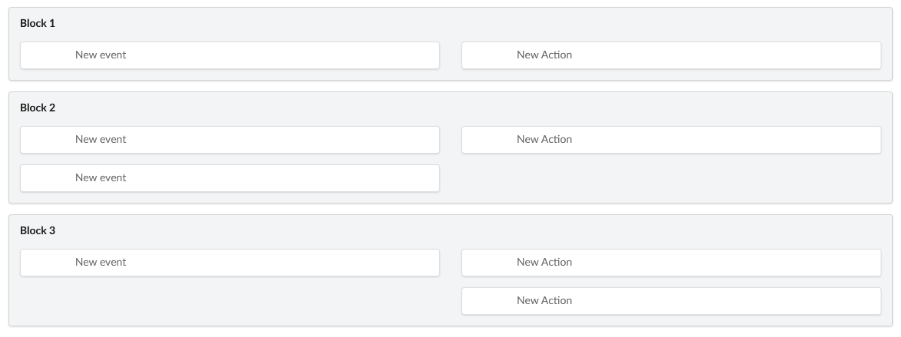
A script can contain any number of blocks. Blocks, in turn, contain events and actions. Events and actions can only exist in blocks and cannot stand alone. The events are always on the left side of a block and the actions are on the right side. Without at least one event and one action, a block doesn't really make sense. If there are several events in a block, they are linked 'or'. So it doesn't matter which event occurs, all actions on the right side are always processed. However, the actions on the right side are always processed from top to bottom. Like scripts, blocks can also be 'Active' or 'Inactive'.
What are events?
The actors for events in a script or a block represent events / messages / calls that are reported in the system. This can be a component that reports that an inbound contact was closed, a dashboard on which a button was pressed, a date - time that occurred, or much more. Each component brings with it a variety of events.
What are actions?
Something can be carried out using an action. For example, each component has its own actions, the number of which varies depending on the component. Actions can also be changing a variable or starting a timer.
Create scripts
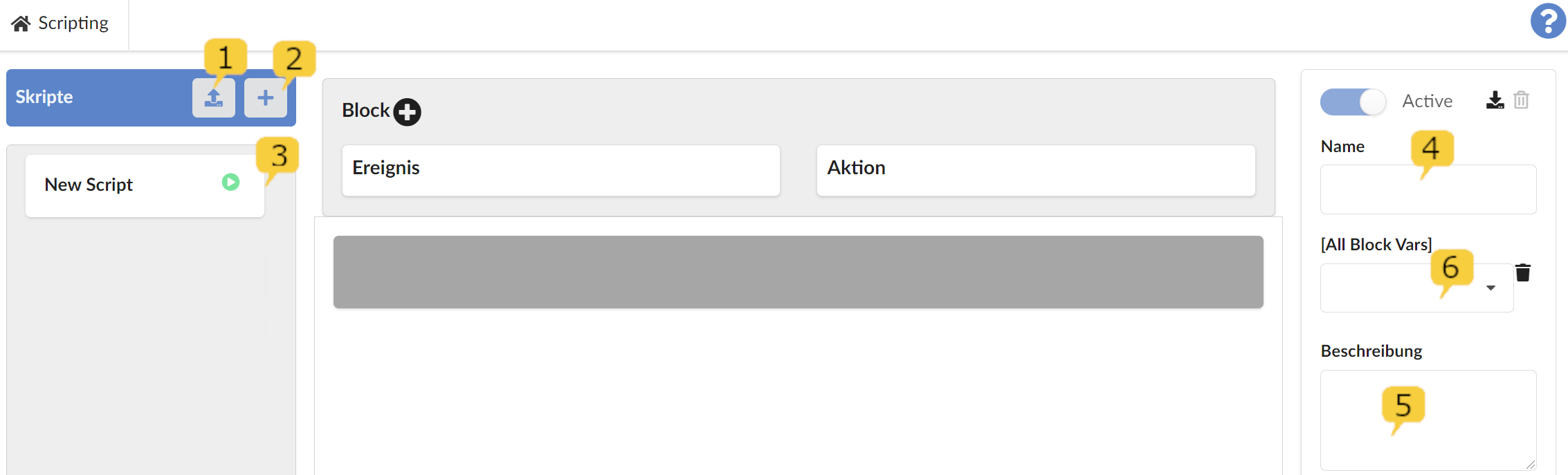
New scripts can either be uploaded 1 or created new 2. After clicking on 2 and 3, a new block can be added using the + symbol next to "Block". If the block is clicked and has a dark gray background, you can assign a name for the block 4 and enter a description 5. The block variables used in the script appear later in the [All Block Vars] 6 field.
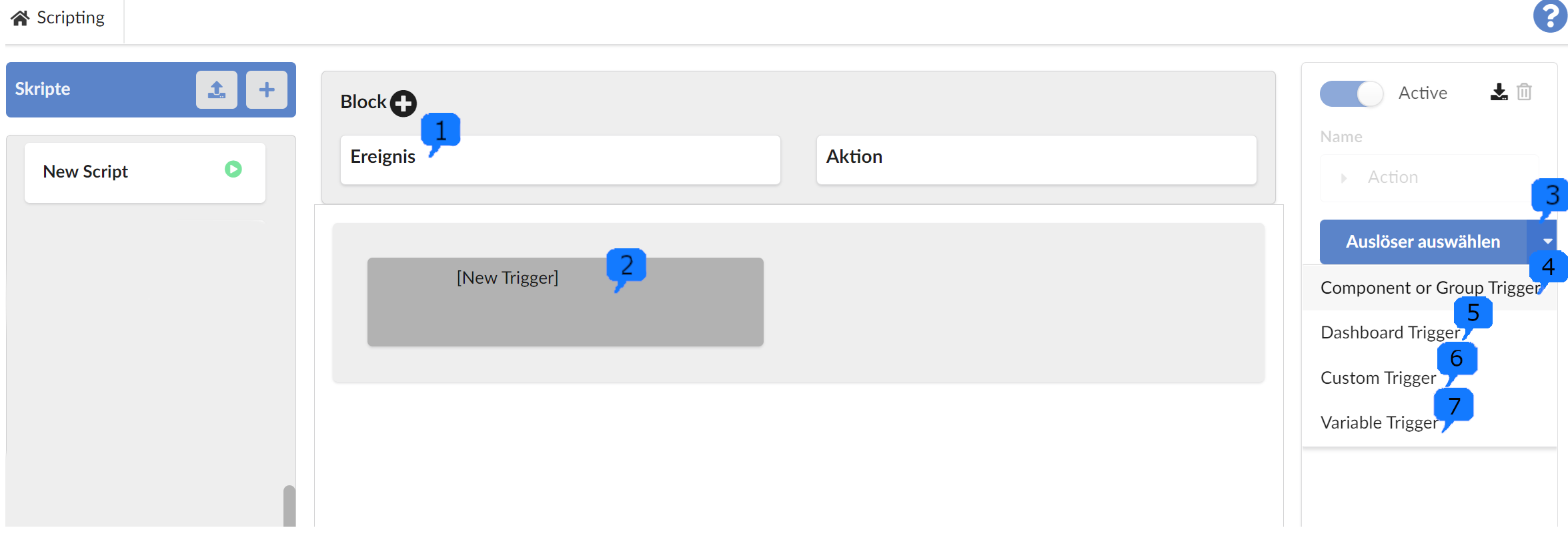
If the block is selected, a new event can be created in this block using the plus button at 1.
With 3 a selection field is displayed with the following triggers:
- Component or Group Trigger 4 - clicking opens the hierarchy view. After a component or group has been marked, a component event can be selected in the right column.
- Dashboard 5 (description follows)
- Custom Trigger 6 - clicking opens a menu where custom events can be saved.
- Variable Trigger 7 - Clicking on it opens a menu in which variables can be defined that trigger events.
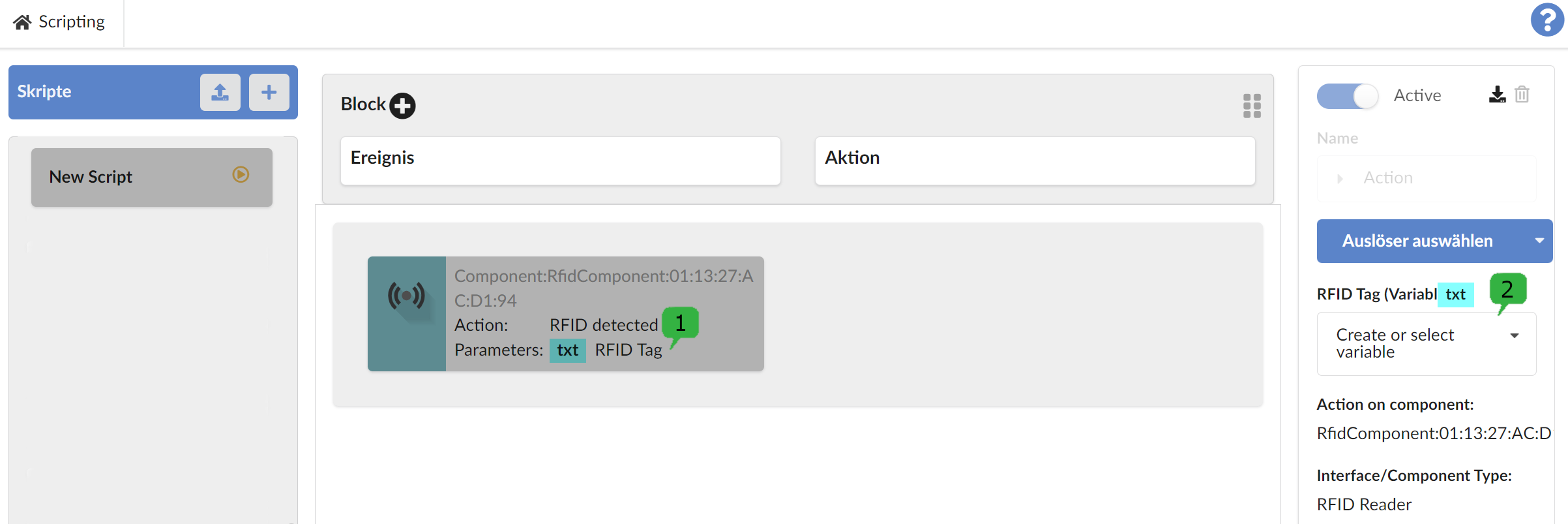
If an event 1 was selected, a variable 2 can be assigned for this event.
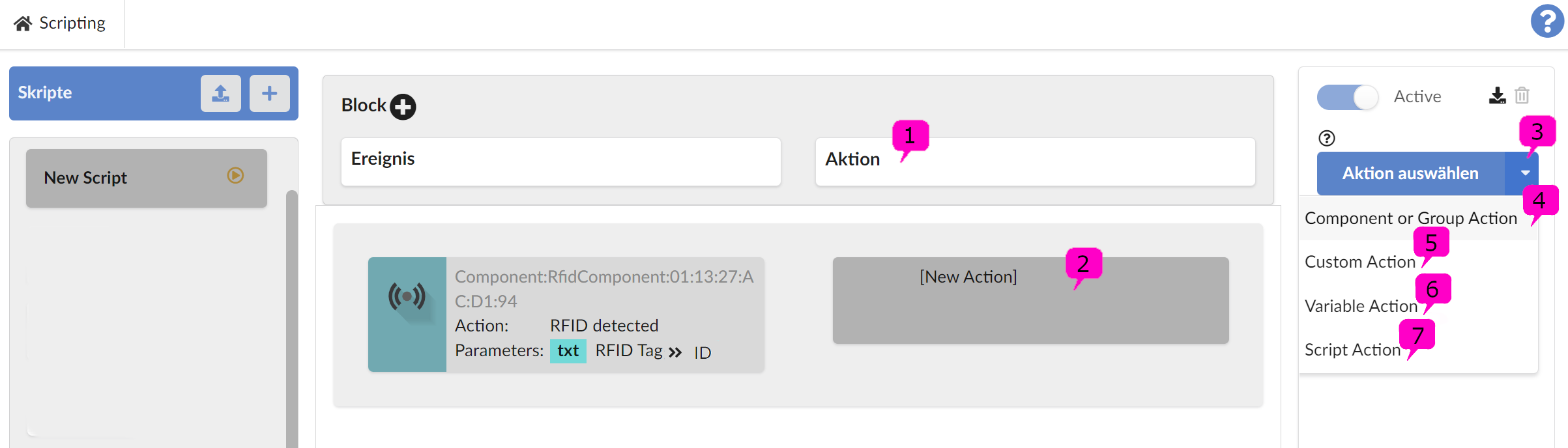
After clicking on the block it is possible to add an action 1. If the placeholder 2 for the new action is selected and grayed out, a drop-down menu with the following will appear under 3 Actions displayed:
-
Component or Group Action 4 - Clicking opens the hierarchy view. After a component or group has been marked, a component action can be selected in the right column.
-
Custom Action 5 - Clicking on it opens a menu where custom actions can be saved.
-
Variable Action 6 - Clicking on it opens a menu in which the variable that changes is defined. After the variable has been selected, the value of the variable can be entered.
-
Script Action 7 - The following script actions are available:
- Delay in milliseconds
- Jump label GOTO to a location marked LABEL
- GraphQl client/server queries
- IF statements
- Search all components contained in a group
- Search for the groups in which a component occurs

IF statements
If you have selected an IF block and click on Conditions (Note: A corresponding ELSE part can be added using ELSE), then a dialog opens for adding one or more IF conditions:

Additional conditions can be added using the + button.
For each condition, a block variable (rectangle icon) or a global variable (globe icon) that can be defined here is selected in the first column 1. The comparison operators are in column two 2. In column 3 it is determined whether the comparison is made with a constant value, a local or a global variable and in column 4 the Constant or variable entered.
Script properties, save and go live
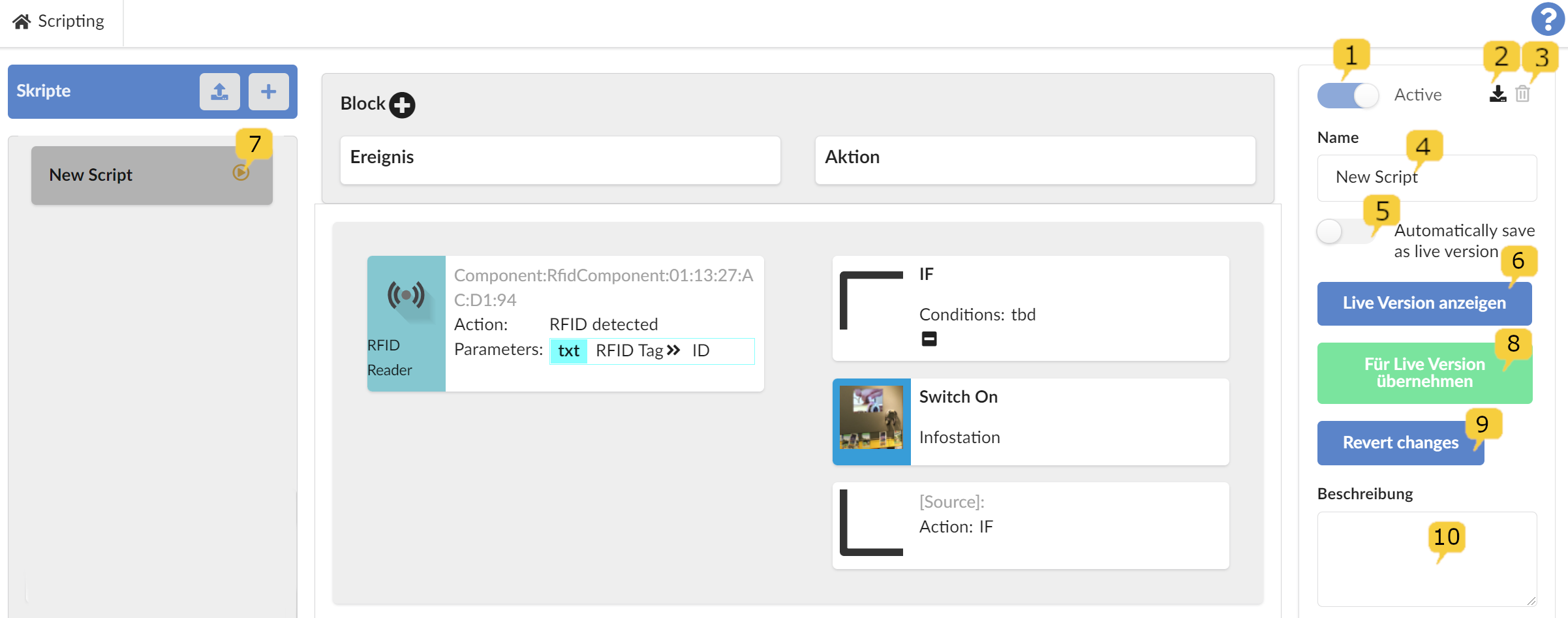
By deactivating the Active 1 slider, a script can be removed from the Live Server without deleting it. The yellow or green recording symbol 7 will then no longer be displayed.
Here the script can be downloaded 2 or deleted 3. A meaningful name is entered under 4 and a description for the script under 10.
If the 5 controller is switched on, changes to the script are automatically applied to the live server and the recording symbol 7 appears green.
6 shows the current live version of the script.
If changes are not automatically applied (controller 5 is switched off), they can be applied manually to the live version with 8.
Revert changes 9 takes back the last changes to the live version.
Running a block with test data
A script block can be tested specifically, without the triggering event actually occurring. Select an event in the block and click Execute on the right. This works for events of components and groups, custom events, timers, variables and dashboards.
A window for the test data opens:
- Triggering component: For component events, select which component should trigger the event. If the event was selected for a group, all matching components of the group can be chosen. This is particularly important for relative targets, which start from the triggering component.
- Event data: A value can be entered for each parameter of the event, e.g. the card number of an RFID reader. Parameters the event filters on in the block are pre-filled with the filter value and cannot be changed, so that the block reacts to the test data.
Run starts only this one block, in the version currently shown: while editing, the saved state of the script; in the live view, the live version. Other blocks reacting to the same event do not run, and the device itself does not notice anything. The actions of the block are really executed, however, so addressed devices do react.
If the block does not react to the test data, for example because the component does not belong to the group, a filter does not match or the block is inactive, the window shows this. The window stays open after running, so several test runs can be made in a row.
Unsaved changes are not part of the test; the window points this out. So save before testing. The test run appears in Traffic with the user who started it.